After an unexpected restart or blue-screen error, begin with the records from the time it happened. Windows crash history can help establish when the problem occurred, whether it repeats and which evidence is available. A recorded error is a starting point for investigation, not an automatic diagnosis.
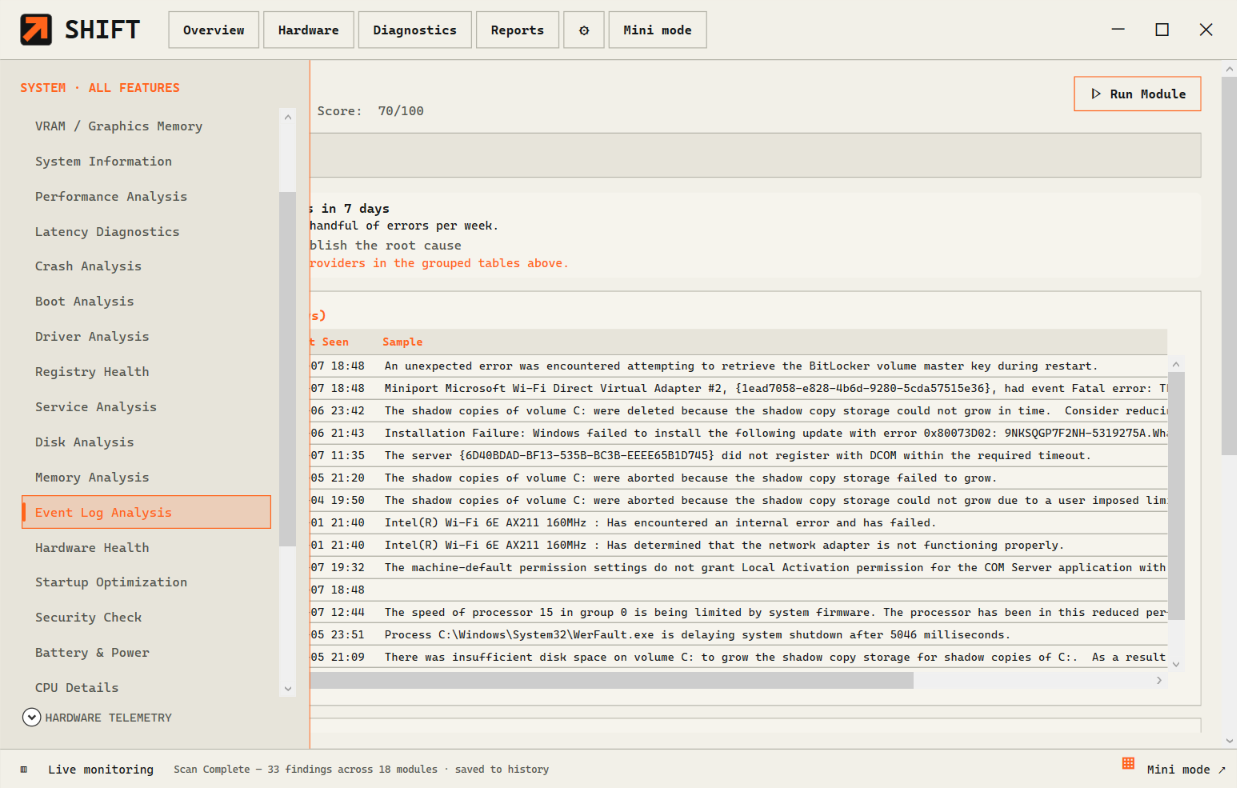
SHIFT can review recorded crash frequency, blue-screen codes, dump headers, crash records and hard resets. Its event-log analysis groups repeated System and Application warnings, errors and critical events. This guide explains how to use that evidence without mistaking a restart record for proof of a failed component.
Record what happened before opening a tool
Note the approximate date and time, the application or task you were using, and whether Windows showed a stop code, froze, lost power or restarted without a message. If you saw a stop code, copy it exactly. Include whether the problem started after a change you can identify, such as an update or a newly connected device.
Do not deliberately reproduce a crash just to collect a cleaner record. Save your work before investigating a recurring issue, and preserve any useful report or screenshot that already exists.
Review crash and event evidence in SHIFT
Open SHIFT and run the relevant diagnostic checks. Review crash analysis and crash history for the available records, then inspect event-log findings near the same time. Before relying on a result, confirm whether the check completed, returned partial evidence or was unavailable. The feature directory describes the checks and their limits.
Look for a recurring pattern rather than selecting the first warning in the list. Note whether the same code appears on multiple dates and whether the problem occurs during a particular task. The report should separate what the record says from what you think might have caused it.
What an unexpected-restart event means
Microsoft explains that Kernel-Power Event ID 41 is recorded when Windows starts after it did not shut down cleanly. This can follow several kinds of interruption. The event alone may not identify the cause. A stop-code value, when recorded, and nearby evidence can guide the next investigation. A missing code or absent dump does not establish that a crash never happened. Microsoft's Windows Client guidance for Event ID 41
| Evidence | Useful question | Avoid concluding |
|---|---|---|
| Repeated crash entries | Does the same recorded issue recur, and when did it start? | Every entry has the same root cause |
| A recorded stop code | Which documented Windows error does the code describe? | The code proves one named part is faulty |
| A restart or hard-reset record | Was shutdown interrupted, and what was the PC doing then? | The power supply must be defective |
| Driver information near the incident | What version or related error evidence is available for review? | A recently changed driver caused the crash solely because the dates are close |
| No relevant record | Did the check complete, and could evidence be missing or unavailable? | The system is healthy or the symptom did not happen |
Cross-check the Windows records when needed
If you want to examine the underlying Windows logs, open Event Viewer from Windows search. Review Windows Logs, then the relevant System or Application entries around the incident time. Read the source, event ID, timestamp and event description together. Record the time zone if you are comparing events with someone else's report.
This does not require treating every warning as an urgent problem. Focus on entries that relate to the symptom and timeframe you recorded. If a Windows entry contains an error code, use Microsoft's documentation for that code rather than a generic “fix all errors” checklist.
Know the limit of a dump-header finding
SHIFT's published crash-analysis capability includes dump-header inspection. That is not a claim that it performs full symbol-based memory-dump debugging or identifies every cause of a blue screen.
For deeper dump investigation, Microsoft's WinDbg documentation describes opening a crash dump and using debugger analysis to investigate the recorded bug check. This is a separate workflow from reviewing SHIFT findings. A support professional may need the dump file, suitable symbols and additional context. Microsoft's guide to analyzing a kernel-mode dump with WinDbg
Do not share a dump file publicly without reviewing the privacy implications. Use a trusted support route and provide only the material needed for the case.
Turn observations into a useful support request
A concise support request can include:
- The approximate incident time and what you were doing.
- Whether you saw a stop error, freeze, power loss or immediate restart.
- The exact recorded code and relevant event details, if present.
- Your Windows version, hardware/architecture and SHIFT version.
- Whether the relevant checks completed, were partial or were unavailable.
- A saved SHIFT report, with identifying details reviewed before sharing.
SHIFT can save scan snapshots, compare supported results and export reports. Use these to keep a record of the evidence you actually collected. Report privacy options help with common identifiers in supported exports, but they do not replace inspecting the file yourself.
Choose the next step from the evidence
If the issue is repeatable, document one change at a time and keep an earlier report for comparison. Follow Microsoft or the relevant hardware or application vendor's specific troubleshooting steps. Do not remove drivers, alter firmware or run optional repair actions merely because a warning appears in a log.
If the PC is slow but does not crash or restart, a CPU, GPU and RAM monitoring guide is a better starting point. For help reading a SHIFT finding, contact support with the evidence above. The setup guide explains how to begin your first session.